


Receive timely Power Usage Alerts to monitor your electricity consumption and stay informed about unusual usage patterns.
With Power Usage Alerts, you can receive a text message or e-mail notification for high or low power use.
On your web browser, log into your SmartHub account to view recent billing history and usage. If you receive mailed statements, this information is also available there.
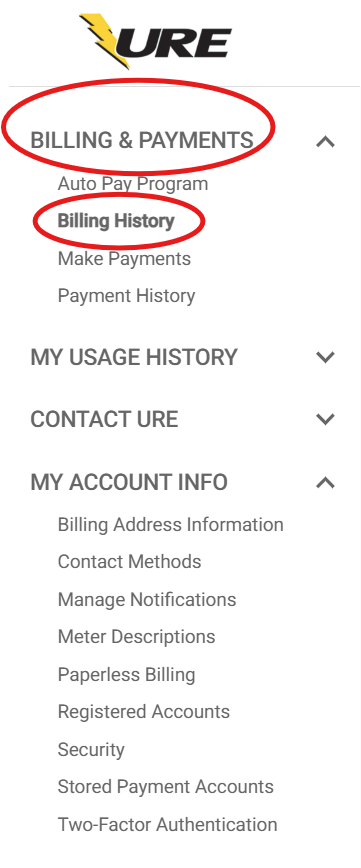
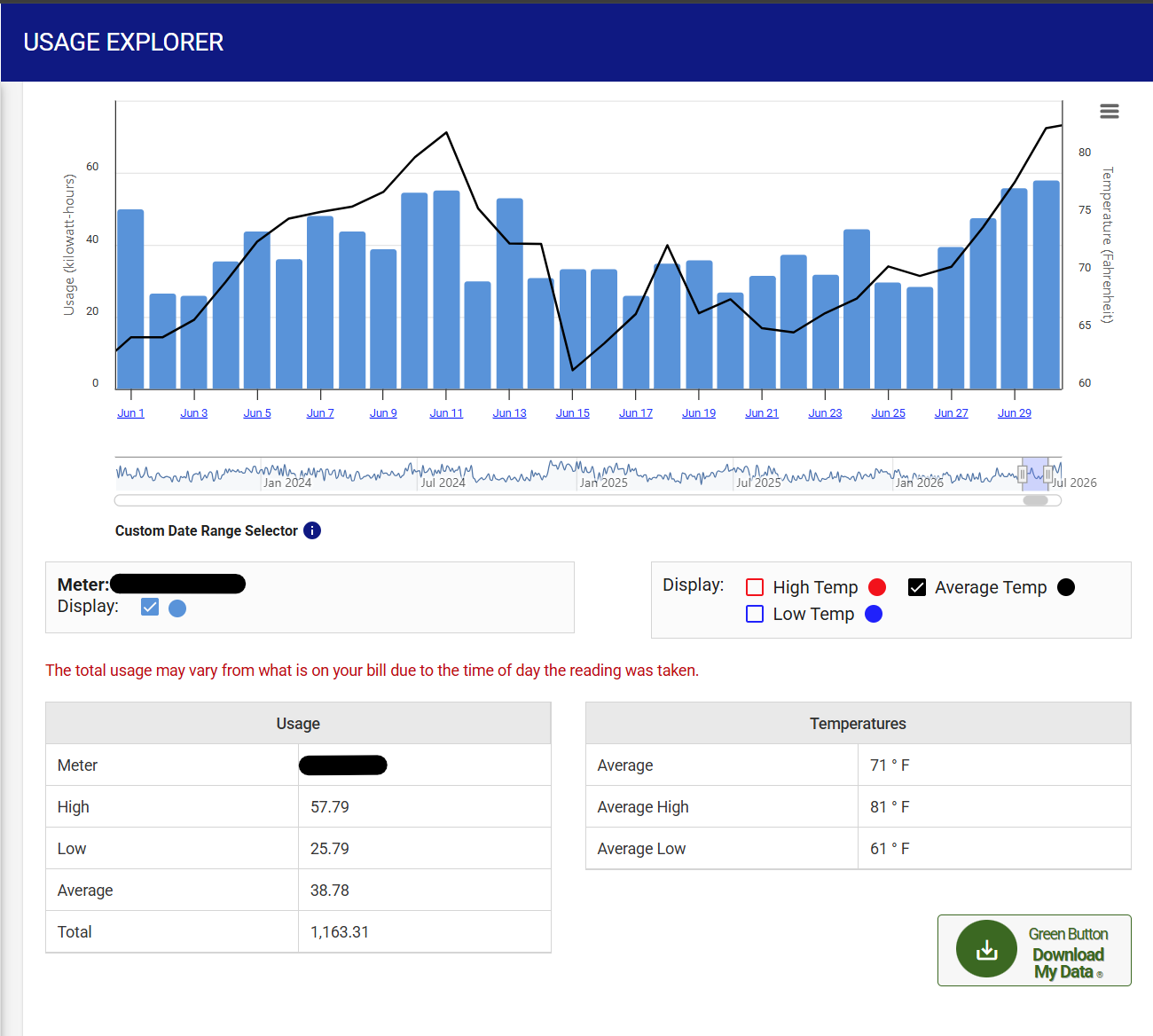
If you need a starting point in determining a high (or low) usage day, we recommend focusing on a recent bill that was “high” (or low) for your account.
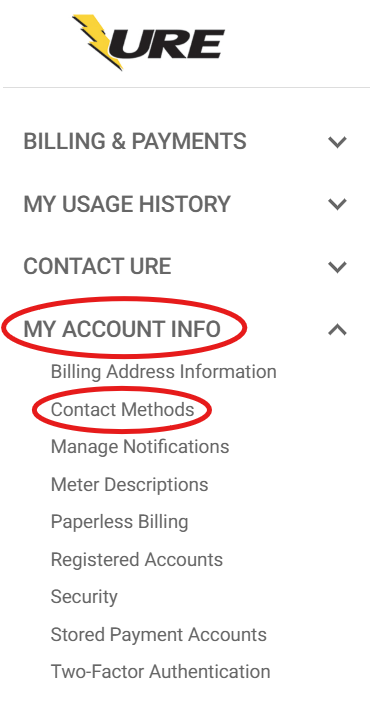
In SmartHub, click “My Account Info” and then “Contact Methods”. Add new e-mail or phone contacts, if desired. To receive text messages to a mobile device, you may need to click “Add Phone in Contact Methods”. To register the mobile number, agree to terms & conditions, enter verification code (look for a text message with the code) and “Save Contact”.
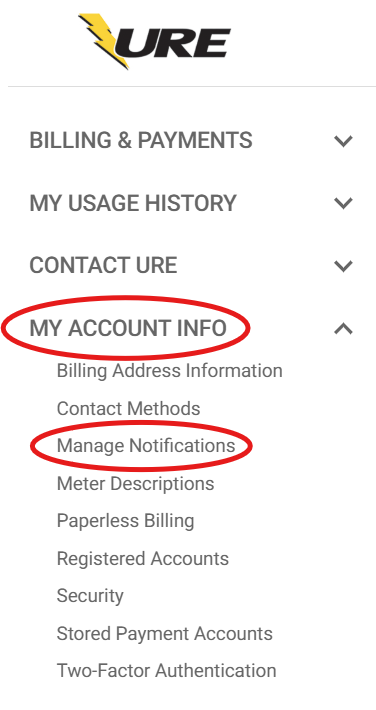
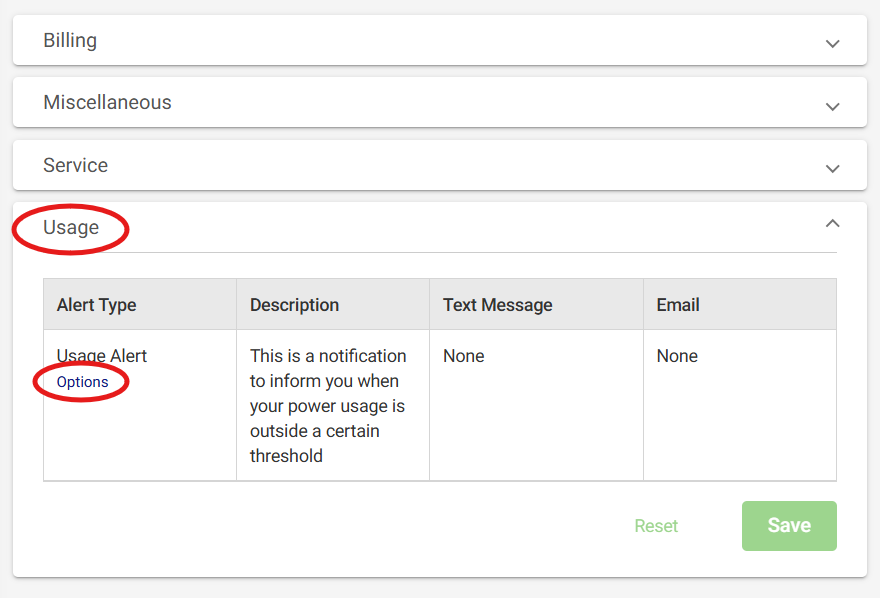
Click on “My Account Info”, “Manage Notifications” and then “Usage”.
Click on “Options” to edit Power Usage Alert Subscriptions.
Choose the meter(s) to receive usage alerts. If you have more than one meter, only select meters with which you want to receive the notification.
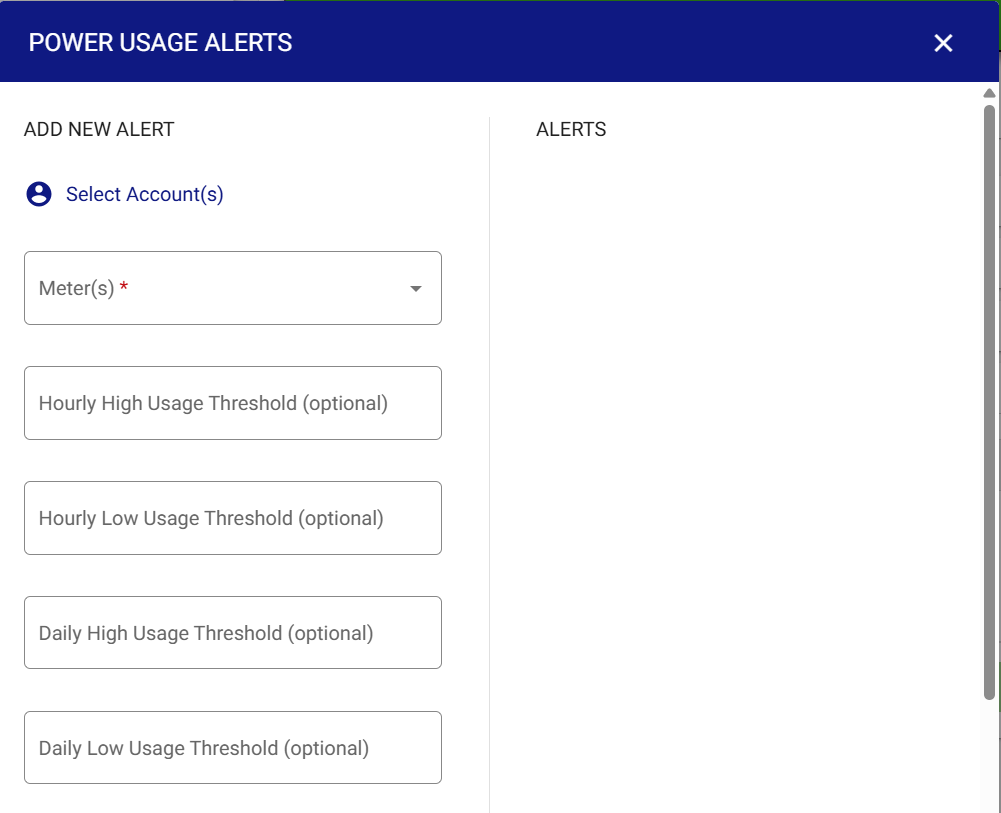
Determine the threshold(s) for which you would like to receive alerts for the account(s)/meter(s). A threshold is a level or value above (or below) which the alert will be sent. Please see Step 1 for help in determining thresholds.
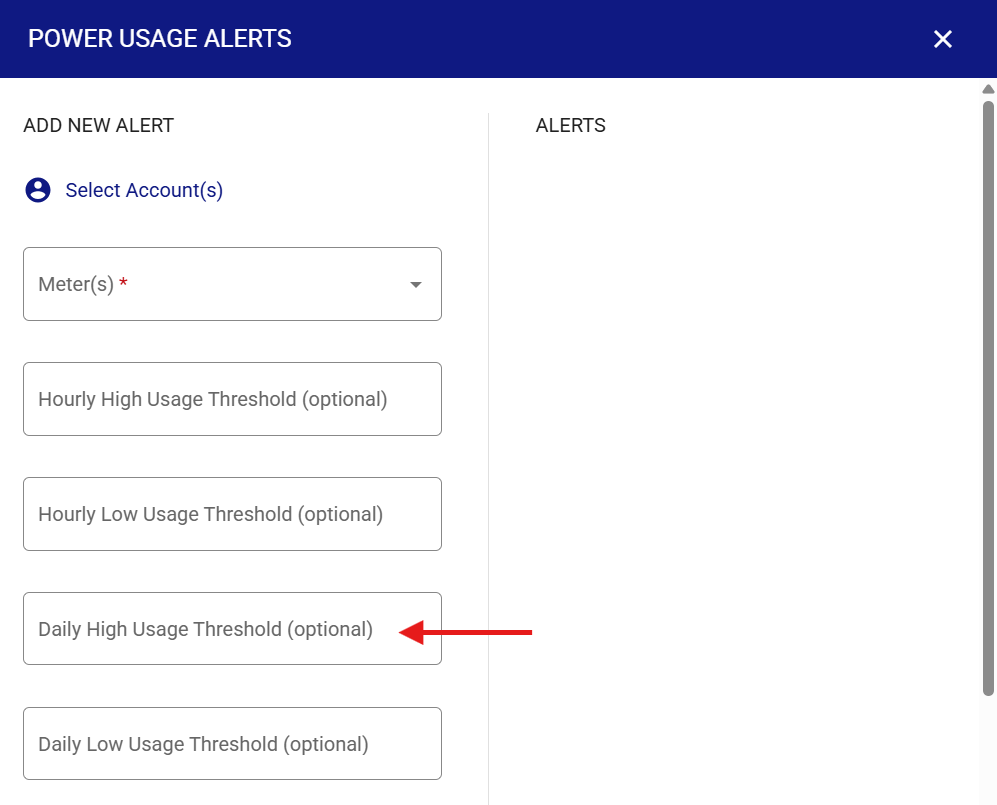
Type the kWh value(s) into the box next to each threshold. Daily and Hourly, Low or High Thresholds are available. All thresholds do not have to be set. [We recommend the Daily High Usage Threshold for high bills.]
Click a contact to select it for your subscription. To choose multiple contacts, hold “Ctrl” and click (contacts). “Save Alert”.
Please note: Multiple Alerts/Subscriptions can be set up at one time with varying preferences and contacts.